Print remains attached
Measure the print. Build the recovery file. Use Safe Resume Homing, then paper-test the nozzle before you lock the position.
Failed print recovery
3DPrintSaver.com finds where the print stopped, rebuilds the rest of the G-code, and helps you line the nozzle back up. It can even help when the printer lost its position or the print came off the bed.
Works with OctoPrint, Klipper through Moonraker, and Bambu Lab*.
*Bambu is in beta testing: single-material prints still attached to the bed, with power and position retained.
$5.99/month or $29/year for the web, Android, and OctoPrint versions. Renews until canceled.
The Windows app is available from Microsoft Store without subscription checkout.
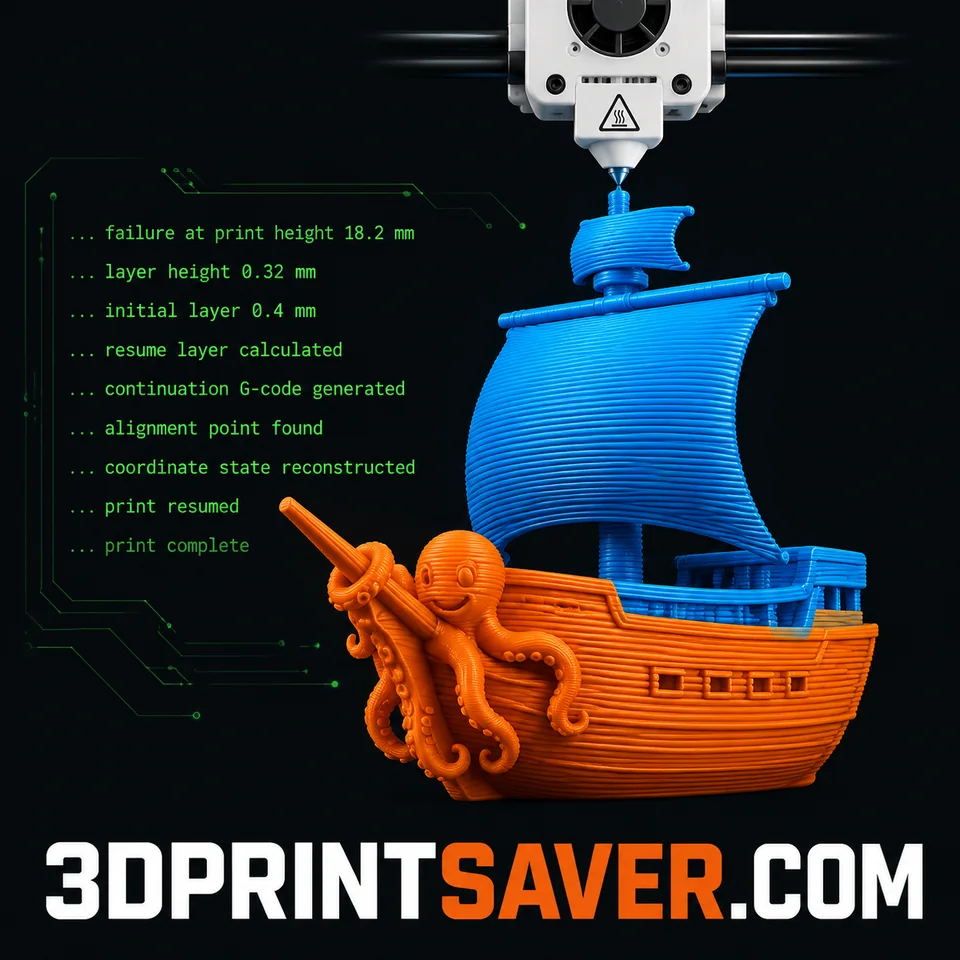
Loose print recovery
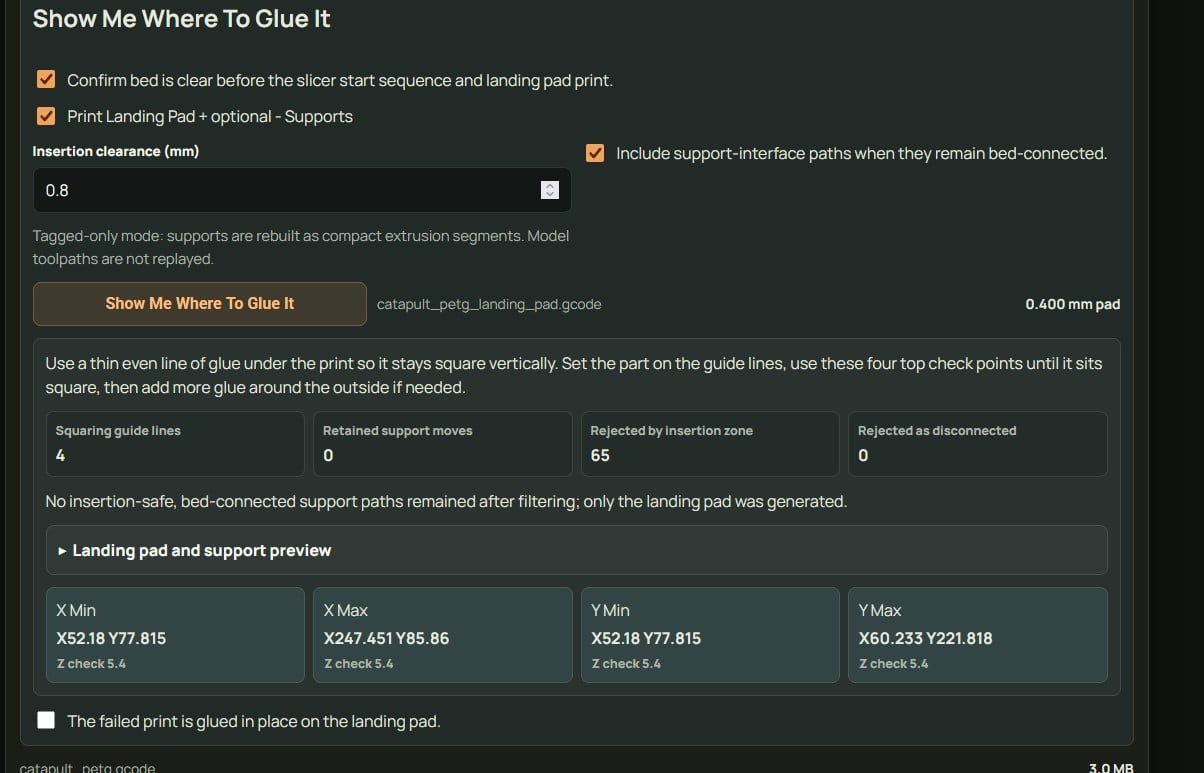
3DPrintSaver.com makes a landing pad and alignment guides. Put the print back in place, line it up, secure it, and finish it.
Proof video
Two-minute Android recovery walkthrough
This demonstration begins with filament-runout detection intentionally disabled, leaving a partially completed print stuck to the bed. It shows the step-by-step process I use to recover roughly 95% of my own failed prints.
The Moonraker connection and END_PRINT parking coordinates shown are one-time setup steps. Once configured, 3DPrintSaver uses the toolhead's known parked position to restore the printer's lost coordinate state in two clicks, without manual XY realignment.
After measuring the unfinished print, the recovery file can usually be built and started in under one minute.
Shown using the 3DPrintSaver Android app with a Klipper/Moonraker printer.
Comparison
Power-loss recovery handles one kind of failure. Skip-to-layer handles one step. 3DPrintSaver.com brings the whole recovery together.
| Feature | 3DPrintSaver.com | Power-loss recovery | Skip-to-layer |
|---|---|---|---|
| Continue after a clean power outage | Guided recovery | Automatic when supported | Manual |
| Start from a measured height | ✓ | — | Layer only |
| Help after a clog, runout, or disconnect | ✓ | — | Restart point only |
| Rebuild the rest of the G-code | ✓ | — | Basic cut only |
| Remove unsafe starting moves | ✓ | — | — |
| Home safely around the old print | ✓ | — | — |
| Help line up X, Y, and Z | ✓ | — | — |
| Help when the printer lost its position | ✓ | — | — |
| Help when the print shifted | ✓ | — | — |
| Help when the print came off the bed | ✓ | — | — |
| Preview the recovery before starting | ✓ | — | — |
| Walk you through the recovery | ✓ | — | — |
Even after power-loss recovery or a pause/resume sequence, the continuation can still leave a visible layer line. 3DPrintSaver.com's precision realignment may help make those resumes cleaner too.
Workflow
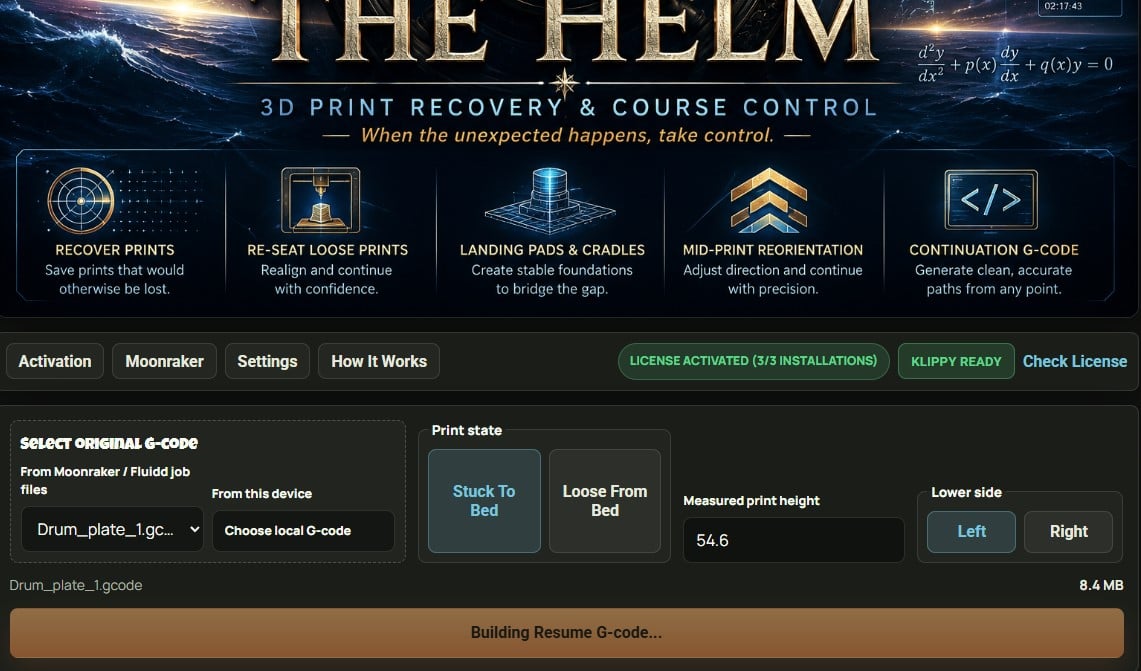
You give 3DPrintSaver.com the old file and a simple measurement. It helps you make a recovery file and line the nozzle back up.
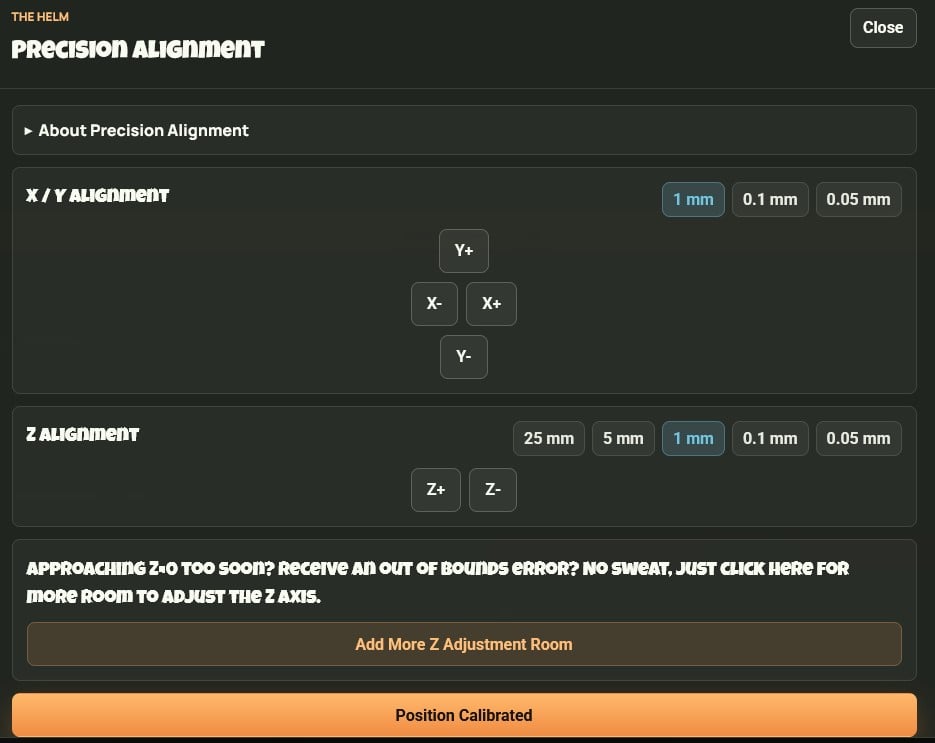
Measure the print. Build the recovery file. Use Safe Resume Homing, then paper-test the nozzle before you lock the position.
Make the landing pad. Put the print back on the guides. Check the sides, then lock the position.
Safety
3DPrintSaver.com helps you avoid guessing. You still check the setup before the printer moves on.
Compatibility
3DPrintSaver.com works with FDM printers controlled through OctoPrint or Klipper with Moonraker.
Not sure what you use? If you print through OctoPrint, Fluidd, or Mainsail, you are probably close. You can also ask before buying.
Printer connections stay on your local network. 3DPrintSaver.com uses only the limited activation and service data described in the Privacy Policy.
The complete 3DPrintSaver app for Windows 10 (version 2004 or newer) and Windows 11 on x64 computers. Connect supported Moonraker/Klipper, OctoPrint, and Bambu Lab LAN printers from one workspace.
Get it from Microsoft StoreNo 3DPrintSaver account or subscription checkout is required for the Windows app. Install OrcaSlicer separately if you want to use slicing features.
Moonraker → Klipper
Use it from a browser near your printer.
https://3dprintsaver.com/app/Moonraker → Klipper
Use your phone or tablet as an installation.
https://3dprintsaver.com/downloads/androidOctoPrint / Moonraker → Klipper
Install it when OctoPrint runs your printer.
https://3dprintsaver.com/downloads/octoprint-plugin
In OctoPrint, open Settings > Plugin Manager > Get More, paste this URL into the install-from-URL field, install, then restart OctoPrint.
Recovery for Bambu Lab printers using LAN-only / Developer Mode.
Beta: single-material stuck-to-bed recovery.
Open Bambu betaFor the web, Android, and OctoPrint versions, checkout first is easier. The license key can be inserted automatically, but make a copy for your records when it appears.
Choose your first installation for Windows or an existing licensed version.
Pricing
Save one long print and 3DPrintSaver.com could pay for the whole year.
One subscription includes the web app, Android app, and OctoPrint plugin on up to three installations.
That can mean time and filament saved. It can also mean your printer gets back to the next job sooner.
If a legitimate issue prevents you from getting practical benefit during the first 30 days, we'll work with you and take care of it. Read the complete Limited 30-Day Refund Policy.
$29/year
Web app, Android app, and OctoPrint plugin.
Print farmers
A single installation of 3DPrintSaver.com has no limit on the number of printers it can be used on. Changing printers is as easy as swapping the Moonraker URL, for no extra charge.
Limits
3DPrintSaver.com is not a failure detection service. It cannot fix a pile of spaghetti, run calibration tests, or correct poor bed adhesion.
But 3DPrintSaver.com can still save time when starting over is the right call. If the bed is leveled and the coordinate state is sound, you can resume from Z 0.0 and run the full G-code without going through the entire startup ritual again.
Founder
I'm Ken, inventor of the patent-pending recovery system. As an aspiring print-farmer wannabe, I was being crippled by prints that started out fine and then, for one reason or another, failed to complete.
The first version saved three real prints on two different model printers in its first 48 hours. It did not just save the prints; it was fun to use. It turned frustration into satisfaction, to the point that I almost wanted prints to fail just so I could see how fast and accurately I could resume them. Then it occurred to me that maybe other people might benefit from this.
Had I known what I was in for, there is no way it would have happened. But with a little OCD, more than 2,000 hours of troubleshooting and debugging, and a measurable cost to my mind and sanity, 3DPrintSaver.com was born. Read the full story.